Updates
View the latest features making their way into AtomAI.
Have a feature request? Submit it here.
September 29, 2026
Ultra AI has been upgraded to GPT-6.1 Sol
Ultra AI and Research now run on GPT-6.1 Sol, which OpenAI released today. OpenAI says it comes close to GPT-6 Astra on coding and professional work, and makes fewer factual mistakes than GPT-6 Sol. Everyday questions stay on GPT-6 Luna.
Read more about what changes in this blog post.
September 26, 2026
Everyone has been upgraded to GPT-6
Every account now runs on GPT-6 Luna, and Ultra AI runs on GPT-6 Sol. OpenAI trained both with the same methods as GPT-6 Astra, and says Sol makes about half as many mistakes as GPT-5.6 Sol did.
Read more about what changes in this blog post.
September 10, 2026
Ultra AI on the free plan, and invite a friend
Ultra AI is the reasoning model AtomAI uses on the questions worth thinking hard about, and until now the only way to see the difference was to hand over a card first. Every account now gets three Ultra answers free. Turn it on from the side menu; the number on the button is how many are left.
There is also an invite link in your profile menu. Send it to somebody who studies and they get a week of Premium features once they have asked a few questions. If they go on to pay for a plan, you get a week too.
- Three free Ultra AI answers. They come out of your ordinary free usage rather than being extra, and no card is involved.
- A week of Premium for an invite. Premium features with a quarter of the paid Ultra allowance for them, and the same for you once they subscribe.
- A worked example on a new chat. A lecture PDF, summarised and turned into flashcards, so Read and Study are findable before you upload anything of your own.
- Four openers on an empty chat. They fill the box for you to finish. Nothing is ever sent without you pressing send.
September 9, 2026
A founder price, and a simpler trial
AtomAI is built and run by one person. It is at the point where the people who use it decide whether it keeps going, so here is the offer I would want to be given: your first year of Premium for $39 instead of $60.
It renews at the normal $60 a year and you can cancel before then from your account. There are 100 of them and it closes on 30 September. Both of those limits are enforced by the payment page itself rather than by a banner, so it stops working exactly when it says it will.
The free trial has changed as well. It used to start you on the yearly plan, which meant trying Premium for a week involved authorising $60 - a bigger commitment than a week of use is worth. It now starts you on the monthly plan at $8 a month afterwards, and you can switch to yearly whenever you like.
- First year $39. Renews at $60 a year, one per account, 100 seats, closing 30 September.
- The 7-day trial is monthly now. Nothing is charged during it, and it is $8 a month afterwards.
- Nothing was taken away. The free plan is exactly as it was.
August 31, 2026
Light mode
AtomAI has always been dark. That suits a side panel open at midnight next to a document you are still arguing with, and it suits a lot less a bright room, a lecture theatre with the blinds up, or simply preferring it the other way. So now it does not have to be.
There is a switch in the side menu. Throw it and the whole app comes with you: the conversation, the composer and its menus, your chat history, Write, Read, Study, the canvas, and every dialog and tooltip in between. It is not a filter laid over the top - each surface has a light value of its own, chosen so nothing turns into pale grey text on a paler grey card.
- Everything is covered. Code blocks swap to a light syntax theme rather than staying a black rectangle, tables and diagrams keep their structure, and every icon, hover and border moves with them.
- It remembers. Your choice is saved against your browser and the app opens straight into it, with no flash of the wrong theme on the way in.
- Dark is still the default. If you were happy as you were, nothing has changed and there is nothing to do.
August 26, 2026
Answers you can actually use
Some things only make sense once you have moved them. You can read three paragraphs about compound interest, or you can drag the interest rate and watch the curve bend. AtomAI now builds the second one for you: a small interactive component that appears inside the answer, under the explanation, and responds to whatever you do to it.
You can ask for one outright - "build me a calculator for this", "let me play with the numbers", "quiz me on this chapter". You do not have to, though: when a question has a variable worth moving, one turns up alongside the written answer rather than instead of it.
- Change something, see what happens. Sliders and inputs that recalculate as you move them, for anything with a relationship in it - interest, projectile motion, supply and demand, a normal distribution, how a loan is repaid.
- Step through a process at your own pace. An algorithm running over a small array, a proof a line at a time, the stages of a cycle, with Next and Back rather than a wall of text.
- Test yourself. A short quiz that marks itself and explains each answer, a drag-to-match, a diagram to click through.
- Take it with you. Restart it to put it back how it started, open it full screen when it deserves the room, or download it as a single .html file that works on its own, offline, forever.
A word on how they run, because it matters. Every component is sealed inside a frame with no access to your account, your chats, your browser storage or the internet - it cannot make a single network request, in either direction. That is also why it downloads as one self-contained file: there was never anything outside it to begin with.
They stream in as they are built, so you watch one assemble beside the answer rather than waiting on a spinner, and they size themselves to their own content, so nothing ends up in a little scrolling box. Interactive components are a Premium feature.
August 18, 2026
Export your flashcards to Anki
Any study set you make in AtomAI can now be exported to Anki. It is in the Download menu beside the two print layouts, and what comes out is a file Anki imports directly through File then Import - no add-on, no converter, nothing to reformat by hand.
The two tools are good at different halves of the same job. AtomAI reads a lecture PDF, a chapter or a conversation and turns it into questions, which is the afternoon of work worth removing. Anki decides when you see each card again, for years, which is what actually decides whether you remember any of it. If you have a review streak going, you should not have to abandon it to make cards faster.
- A text file, not a deck package. Anki imports it without an add-on, you can open and check it before you do, and your decks, tags and scheduling stay entirely Anki's business.
- Read the cards first. Anything AI writes can be confidently wrong, and a wrong flashcard is worse than a missing one because you will learn it. The editor is there for that.
Anki is free, open-source software made by the Anki project. AtomAI is not affiliated with it - the export exists because a lot of people who make cards here already review them there.
Flashcards from any chat
Study sets used to have to start from an uploaded PDF or Word document. Now any conversation can become one: open the chat menu and choose Make flashcards, and the explanation you finally understood turns into cards instead of scrolling away.
The set opens in Study mode as soon as it is made, and behaves like any other from there: edit it, quiz yourself, play the matching game, share it with a classmate, or export it to Anki.
A nudge when a set is due
Study a set and AtomAI now works out when it is worth coming back to, on a gap that widens each time you revisit it - a day, then three, then a week, then a fortnight or so. You get one email when something is due, and it stops after two you ignore.
This is the least glamorous feature here and probably the most useful. Spreading the same total study time over weeks produces far more durable memory than the same hours the night before, and the only reason people cram is that nothing reminded them not to.
A free library of ready-made sets
There is now a library of free study sets on topics students actually revise - photosynthesis, bonding, Newton's laws, differentiation, memory models. You can study any of them in the browser with no account at all, and save a copy to edit if you want one.
August 11, 2026
Download a study set to print
Revision does not always happen in front of a screen. A study set now exports as a PDF, so you can spread it out on a desk, hand a copy to someone taking the same module, or take it into a room where a laptop is not much use.
Download sits next to Edit cards and Share on a set's own screen, and offers two layouts, because printing a set means two rather different things:
- Study sheet - every card as a numbered question with its answer underneath. The one to read straight through, or scribble on.
- Cut-out cards - eight to a page with dashed lines to cut along, questions on one side and answers on the other. Print it double-sided, flipped on the long edge, and every answer comes out behind its own question. Each card is numbered on both faces too, so a pile that gets shuffled can still be paired back up.
Only the correct answer is printed, never the other multiple-choice options - the same rule a shared set follows, so a sheet left on the table does not give away the quiz.
August 3, 2026
Diagrams in the canvas
Some answers are a shape rather than a paragraph. A process with branches, a cycle that feeds back into itself, a topic that breaks down into six sub-topics that each break down again - writing those out as prose asks you to hold the structure in your head while you read about it. AtomAI now draws them instead.
Ask for a flowchart, a mind map, a concept map, a timeline, an org chart, a decision tree or a sequence diagram and you get one in the canvas beside the chat. You do not have to ask, either: when the answer to an ordinary question has that kind of structure, a diagram appears alongside the written explanation rather than instead of it.
- Move around it - drag the diagram with your mouse, and hold Ctrl (Cmd on a Mac) while scrolling to zoom in on one corner of it.
- Zoom controls - plus and minus, zoom to fit, and back to actual size, in the corner of the canvas.
- Full screen - give a big diagram the whole window instead of half of it. Escape brings you back.
- Export it - as a PNG to drop into an essay or a slide, as an SVG that stays sharp at any size, or as its Mermaid source to keep editing somewhere else.
And it refines like everything else in the canvas. "Add a step after that one", "split that branch in two", "make it top-down" - the diagram redraws in place, and the version history keeps what it looked like before.
Share a set as flashcards, multiple choice or match
Sharing a study set used to send one thing: a list of cards to tap through. You now choose which of the three learning modes the link opens in, and whoever you send it to gets that mode - the real one, exactly as it works inside AtomAI, not a preview of it.
- Flashcards - they flip through the cards one at a time, question first.
- Multiple choice - they answer a quiz and see how many they got right.
- Match - they pair questions to answers, four at a time, against their own mistakes.
Flashcards stays the default, and you can change the mode after sending the link - everyone with it sees the new one, so you never have to revoke a link just because you picked the wrong mode.
One thing worth knowing: a set shared as multiple choice has to publish the wrong answers too, because that is what the mode puts on screen. The other two modes still publish the correct answer only. The share window says which you are choosing before you send it.
Sharing and editing have also moved onto the list itself. Every set now has a share button on its row, and Edit sits in its menu, so neither takes opening the set first.
Shared sets now say who made them
A shared set is credited to you by name - "Shared on 1 August 2026 by Tim Jones" - so a set going round a group chat does not arrive anonymous. Your name only; never your email address.
August 2, 2026
Research mode
Chat answers your question in one pass. That is the right thing for most questions and the wrong thing for the ones you would otherwise spend an afternoon on - where the honest answer needs several searches, and where the second search only makes sense once you have seen what the first one turned up.
Research is that second kind of question. It sits in the new + menu next to the message box. Turn it on, ask your question, and AtomAI breaks it into the parts that have to be answered first, searches the web for each of them, searches again on whatever those results raise, and only then writes.
- It shows its working. Specific facts and figures are attributed to the source they came from as you read, and the answer ends with the list of what it actually used.
- It tells you what it could not find. A part of your question it could not settle is named plainly instead of being papered over, which is the bit that makes the rest trustworthy.
- It disagrees out loud. Where sources conflict it says so and explains which is better supported, rather than averaging them into something no source actually says.
- It thinks harder. Research always runs at the highest reasoning setting, whatever your usual thinking amount is set to.
- You do not have to watch it. A run takes a few minutes, so it no longer depends on the panel staying open. Close it, switch modes, open another chat - the research carries on and the finished answer is saved to the conversation you started it from. A note above the message box says so while it is running, and offers to email you the moment it is done if you would rather walk away entirely.
Research is a Premium feature, and each run uses 5 Ultra credits rather than the usual one, because it is a dozen model calls rather than a single answer. That is also why it arms itself for your next message only and switches off once you send it - a mode that quietly stayed on would spend a week's allowance on follow-ups you only meant as small talk. While it is armed there is a pill in the message box telling you so, and what it costs, with a cross to turn it back off.
If you are on the free plan you will still see it in the menu, greyed out, with a link to the plans - not hidden, so at least you know it is there.
Everything in the message box moved into a + menu
Attach, screenshot and dictate used to be a row of icons that grew every time something was added. With Research it would have been another one, in a side panel that is 400px wide.
They are all now behind a single + button, the same place Gemini and Claude keep theirs. Sharing a chat moved the other way, into a three-dot menu at the top right of the conversation, alongside two new things: pin and export to Word.
- Pin a chat and it sits in its own section at the top of your history instead of sinking as you start new ones. Pinned chats stay reachable no matter how many newer ones pile up.
- Export to Word saves the whole conversation as a .docx - both sides of it, formatted, without the thinking traces.
- Searching your chats now searches all of them, not just the recent ones the sidebar had loaded. If a chat exists, search will find it.
Share a study set, and edit the cards
Study sets are the one thing in AtomAI that a whole class can use. One person turns the lecture PDF into flashcards, and now everyone else can study from them.
- Share a set with a link. Same controls as sharing a chat: hidden from search engines unless you tick the box, and revocable at any time.
- Anyone can save their own copy. A copy, not a shortcut - they can edit theirs and you can edit yours, and neither changes the other. Revoking your link does not take away copies people already saved.
- Only the answer is shown. The shared page shows the question and the correct answer, never the other multiple-choice options, so it does not give away the quiz.
The other half of this: a generated set is no longer fixed. "Edit cards" lets you fix a clumsy question or a wrong answer, mark which answer is correct, add and remove answers, add and delete cards, drag to reorder, and randomise the whole set. Nothing saves until you press Save, so you can always back out.
This matters more now that sets can be shared - a mistake in one used to be permanent, and now travels.
Continue a chat someone shared with you
Shared chats used to be read-only and that was the end of it. If the conversation stopped just before the thing you actually wanted to ask, you had no way to carry on.
There is now a Continue this chat button on every shared page. It copies the conversation into your own account and opens it, so you can ask the next question yourself. If you do not have an account yet, signing up takes you straight there with the chat already waiting.
Attachments are not copied, the same as they are not shown on the shared page - the copy contains exactly what you could already read.
August 1, 2026
Incognito chats
Some questions you do not want sitting in your history. There is now an incognito button in the chat toolbar: turn it on and the conversation is never saved, never appears in your chat list, and is gone the moment you leave it.
- Nothing is written down. An incognito chat is not stored anywhere - not as a thread, not as messages. Closing it or switching back is the end of it, so there is nothing to go back to and nothing to delete.
- Memory is paused. If you have memory turned on, an incognito chat neither reads what AtomAI has saved about you nor adds anything to it.
- You always know you are in it. A banner sits above the message box for as long as incognito is on, and the toolbar button stays lit.
- Clean in both directions. Turning it on starts a fresh chat rather than continuing the one you were in, and turning it off does the same - nothing carries across either way.
One thing it does not change: incognito chats still count towards your usage limits, the same as any other message. The banner says so, rather than leaving you to find out when a limit arrives sooner than expected.
July 30, 2026
Memory, and why it is off until you say otherwise
AtomAI can now remember useful details about you between chats - what you are studying, how you like your answers, which tools you work in - so you stop repeating yourself at the start of every conversation.
It is explicit opt-in. Memory is not enabled by default, on new or existing accounts, and nothing is saved unless you accept. You will be asked once, after a reply, and if you ignore or dismiss that prompt it stays off and you will not be asked again.
- Only what you tell it. Facts you actually state - your work or course, stable preferences, the tools you use. Never anything sensitive, never your credentials, and never details about other people.
- Off means deleted. Turning memory off in your profile menu permanently deletes everything AtomAI has saved about you. It is not a pause button.
- Yours to change at any time. The switch sits in the profile menu under Select to Search, and both turning it on and turning it off ask you to confirm first.
July 26, 2026
Chat improvements: prompts, search, dictation and copy
A handful of things that had been missing from Chat for a while, and were starting to annoy me as much as anyone else.
- Prompt suggestions. The empty chat screen now offers a few starting points. They fill the box rather than sending immediately, so you finish the sentence yourself.
- Search your chat history. A search box above the thread list filters by title as you type, across both grouped and ungrouped chats.
- Dictate instead of typing. A microphone button in the input turns speech into text and adds it to whatever you have already written. Chrome only, and it hides itself where your browser does not support it.
- Copy your own messages. Hovering a message you sent now shows a copy button alongside the edit one.
- Edit or regenerate anything. Previously you could only edit your last message or regenerate the last reply. Now you can do either from any point in the conversation - everything after it is replaced, as you would expect.
Share a conversation with a link
You can now turn any chat into a read-only page and send someone the link. Useful for showing a worked answer to a classmate, or keeping a good explanation somewhere you can find it again.
- Private by default. Shared pages are hidden from search engines unless you tick the box to allow indexing.
- Attachments are not included. Files and images you uploaded stay in your account, not on the shared page.
- Revocable. Revoke the link at any time and the page stops working immediately, even for people you already sent it to.
Fixed: attachments blocked after your first PDF
This one was a genuine bug, and an embarrassing one. Free accounts get one PDF upload, but the check was being applied to every file - so once you had used it, you could no longer attach an image either. Since photographing a question you are stuck on is one of the main reasons to use AtomAI, that was breaking the core of the free plan.
PDF uploads are now the only thing that uses a PDF credit. Images and Word documents are unaffected.
Clearer plans, and the free trial is actually visible
The pricing page has been rebuilt. There is now a monthly/yearly toggle, and the 3-day free trial is offered on the card instead of hiding behind a link you had to arrive from.
- Honest limits. The free plan says what it actually gives you - 30 questions every 4 hours - rather than describing itself as unlimited.
- Correct savings. Yearly saves 37% against monthly, not the 40% the old banner claimed.
- A pricing FAQ covering how the trial works, cancelling, and what Ultra AI actually changes.
I also removed two things the plans advertised that AtomAI does not do: an "ad-free experience" (there have never been ads) and faster response times on higher plans (speed depends on the model, not what you pay).
Emails you can turn off
New accounts now get a short series of emails covering how to get more out of each mode, spread over the first couple of weeks. Every one has a working unsubscribe link, and unsubscribing stops all of them immediately - you will still get the essentials like password resets and billing confirmations.
Faster pages, and a few new ones
The marketing site was rendering entirely in the browser, which made every page slower than it needed to be and left search engines with a blank page. That is fixed. I also added database indexes that were missing across the board, which speeds up loading your chats, files and study sets.
There is a new features page, a proper sign-up page separate from log in, and a footer that actually links to things.
July 25, 2026
Everyone has been upgraded to GPT-5.6
All users have been moved up to GPT-5.6, a significant step up in reasoning, accuracy, and instruction following over the previous models.
Read more about the upgrade in this blog post.
June 18, 2026
Search the web in Chat (Ultra)
Ultra users can now get answers grounded in live information from the web. When you ask about recent events, current facts, or anything that needs up-to-date data, the AI searches the internet and synthesises the results into a single, cited answer.
There's nothing to switch on, just ask a question that needs current information. You'll see a "Searching the internet" indicator while it looks things up, and the answer then streams in as normal.
May 30, 2026
Introducing the Canvas
This is a big one. When the AI produces substantial, self-contained content, a long document, a code file, or a table, it now opens it in a dedicated Canvas panel beside the chat instead of burying it in the conversation. Short answers stay in the chat; deliverables get their own space.
- Live streaming. The canvas opens the moment the AI starts writing and fills in as the content is generated.
- Conversational refinement. Ask it to "make it shorter", "add a section", "fix this function" or "update that row" and the canvas updates in place. Small, localised edits apply almost instantly without regenerating the whole thing.
- Version history. Every refinement is saved as its own version, so you can jump back to an earlier one at any time from the version dropdown.
- Export anywhere. Save documents to Word (.docx), tables to Excel (.xlsx), and code to a language-specific source file, plus Markdown and plain text.
- Syntax highlighting for code, and everything is saved automatically with your thread.
Everyone has been upgraded to GPT-5.5
All users have been moved up to GPT-5.5, a significant step up in reasoning, accuracy, and instruction following over the previous models.
Read more about the upgrade in this blog post.
Control how much Ultra thinks
Ultra users now have a "thinking amount" control in Chat. Dial the reasoning effort up for harder, more complex problems where you want the model to think things through, or drop it down to Instant for near-immediate responses on simpler questions.
Attach Word documents in Chat
Alongside images, you can now attach Word (.docx) documents directly in Chat and ask questions about their contents. The text is extracted automatically so the AI can read and reason over it.
May 14, 2026
Upload files in Write mode, and send drafts to Chat
You can now upload files in Write mode to use as source material for the content you're creating. Once you've generated a draft, you can send it straight over to Chat to keep refining it conversationally.
August 9, 2025
All users have been upgraded to GPT-5
We've upgraded all users to GPT-5. This is a significant upgrade from the previous models and will improve the accuracy and speed of the AI.
Read more about the upgrade in this blog post.
July 4, 2025
Ability to edit previous messages in Chat mode
You can now edit your previous messages in the chat. This is useful if you want to correct a mistake or add more information.
To do this, hover over the message you want to edit (the last one you sent in the chat) and click the edit button.

You can then edit the message and click the save button to update it.
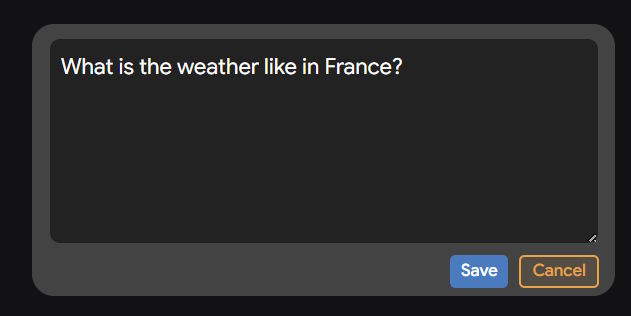
Once you click save, the AI will regenerate the response with the updated message.

June 23, 2025
Faster and more accurate models!
We've updated the models that AtomAI uses for its AI features. The new models are:
- GPT-4.1 mini (normal AI)
- GPT-4.1 (Ultra AI)
These models offer a significant improvement in speed and accuracy when compared to the previous Gemini models, making them better suited for complex tasks and long-form content generation.
From OpenAI's website:
GPT‑4.1 excels at the following industry standard measures:
- Coding: GPT‑4.1 scores 54.6% on SWE-bench Verified, improving by 21.4%abs over GPT‑4o and 26.6%abs over GPT‑4.5-making it a leading model for coding.
- Instruction following: On Scale's MultiChallenge, a measure of instruction following ability, GPT‑4.1 scores 38.3%, a 10.5%abs increase over GPT‑4o.
- Long context: On Video-MME, a benchmark for multimodal long context understanding, GPT‑4.1 sets a new state-of-the-art result-scoring 72.0% on the long, no subtitles category, a 6.7%abs improvement over GPT‑4o.
June 19, 2025
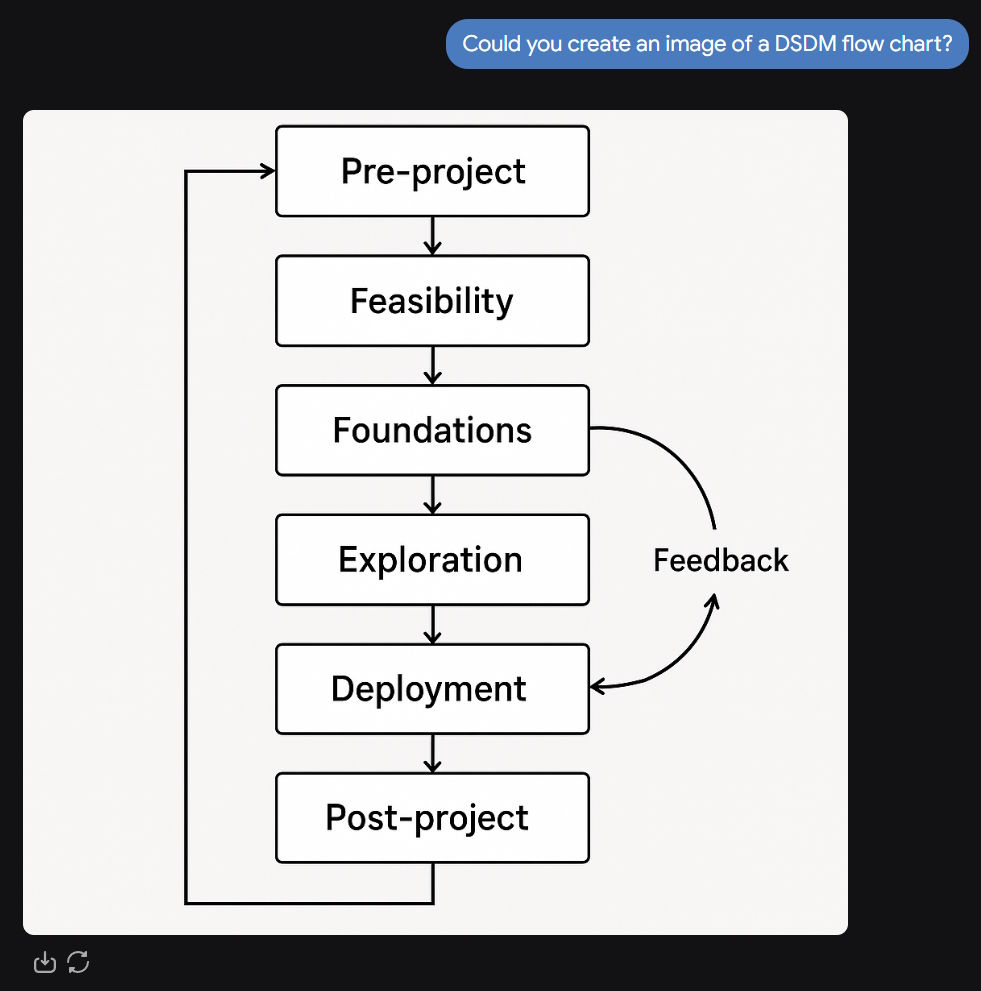
New AI image generation feature
You can now generate images from a prompt (premium users only). Simply ask the AI to generate an image of anything and it will create it using the latest GPT-4o image model (the one people have been using to create Studio Ghibli style images).
June 7, 2025
Customer request: Upload images and documents in Chat
You can now upload images and documents to the AI and ask questions about them. This has been one of our most requested features, so I hope you all enjoy!
May 11, 2025
Add Chat History sidebar for wide screens
You can now view your chat history in a sidebar (previously only visible by clicking the chat history button). If you are using the extension, make sure that the sidebar is expanded enough to see the chat history. Website users should see it by default.,
General Fixes
We fixed a few bugs and issues that were reported by users. If you find any issues, please let us know!
- Address browser app crashing on some browsers
- Fix model not found error in chat
May 1, 2025
Use image upload for AI screenshot feature (extension only)
Previously this feature was using OCR (optical character recognition) to extract text from the screenshots taken. Although this was better for performance, it was missing some items like symbols, or if the image screenshotted was low quality/scanned text it would not pick up the characters.
I've now switched to using direct image upload to extract text from the screenshots using AI, which is better for accuracy (but is slightly slower). Let me know if you have any feedback on this!,
April 30, 2025
New Browser App is live!
AtomAI now lives in your browser! You can now use the app and (nearly) all its features without having to install it as an extension.
The only feature that is only available as an extension is the AI screenshot feature. This is because you can't screenshot other tabs when using the app in the browser (via the web).
April 20, 2025
New Ultra AI model: Gemini 2.5 Pro
We've switched the model for Ultra AI to Google's Gemini 2.5 Pro model, which is currently the best model in the world for general purpose tasks. This was previously Gemini 2.0 Pro, with 2.5 Pro being a significant update in terms of reasoning and solving complex tasks.
Use AI native vision for Read mode (PDF scanning)
Previously we used RAG (retrieval-augmented generation) to scan PDFs and extract text. This was a good solution, but it was very intensive and slow.
We've now switched to using AI native vision to scan PDFs and extract text. This is much faster and more accurate.
From Google's website:
The Gemini API supports PDF input, including long documents (up to 1000 pages). Gemini models process PDFs with native vision, and are therefore able to understand both text and image contents inside documents. With native PDF vision support, Gemini models are able to:
- Analyze diagrams, charts, and tables inside documents
- Extract information into structured output formats
- Answer questions about visual and text contents in documents
- Summarize documents
- Transcribe document content (e.g. to HTML) preserving layouts and formatting, for use in downstream applications
April 1, 2025
Select to Search (extension only)
I've added a small AskAI button that appears when you select text on a website. If you click it, it will open a chat window and instantly get you answers on the content you selected.
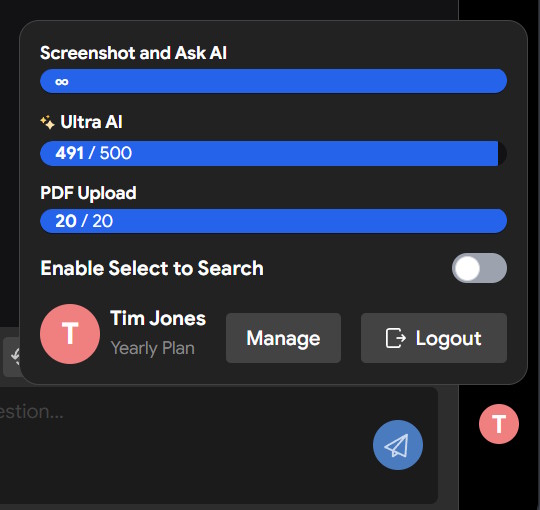
I understand that not everyone may need this immediately - to turn it off just click your profile image in the bottom right, toggle "Enable Select to Search" to off.
March 31, 2025
Custom tones and formats in Write mode
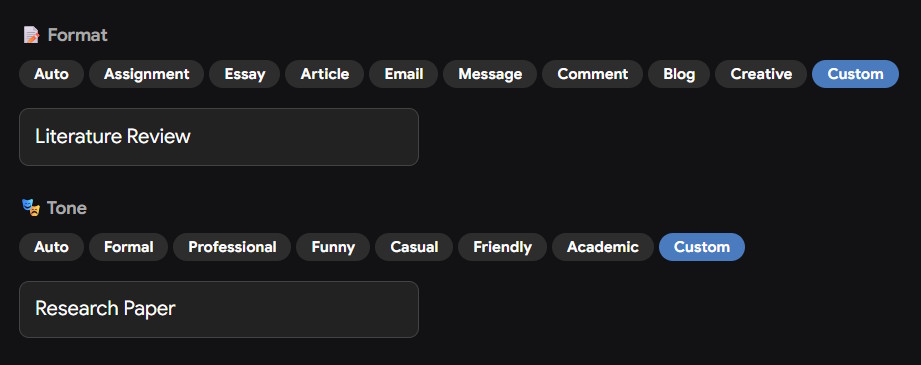
Although the preset tones and formats were useful, I've added the ability to create your own custom tones and formats. This is useful for assignments or reports where you want to ensure the content reads a certain way.
March 1, 2025
AI detection bypass feature added to Write mode
Premium users can now bypass AI detection in Write mode by clicking the "Bypass AI detection" button. This will allow you to create content and not have platforms such as TurnItIn detect it as AI generated. Learn more in this blog post.
Min/max length in Write mode
You can now set the minimum and maximum length of words for the content you want to generate. This is useful for assignments or reports where you want to ensure the content is a certain length.